

Estate sale employee time tracking means recording who worked prep and sale days, how long they worked, and what that labor cost the company, so you can pay helpers fairly and know the true cost of each sale. The three habits that make it work: clock people in and out on the job, review hours on one Team Activity screen, and keep client-facing Labor fees as a separate manual line when the family pays for crew.
EstateSail is our product, and this guide explains how our customers run Team clock and labor cost in it. The same operating habits apply to any setup.
What employee time tracking means on an estate sale
Estate sale crews are field labor. People move between pre-sale setup, door coverage, floor help, and register work, often with different hours for each sale.
During pre-sale setup, crew members may be completing inventory and pricing, organizing rooms, and preparing the property. During sale days, the work changes to admitting shoppers, helping buyers, watching the floor, and supporting multi-register estate sale checkout.
Good estate sale labor tracking answers four practical questions:
- Who worked on the sale?
- When did each person clock in and out?
- How many hours did each person work?
- What did those hours cost at the person’s hourly rate?

This information supports payroll prep and helps the owner understand the sale’s actual labor cost. It also creates a useful record when estimating future jobs.
Labor may also appear as a fee charged to the family. That is a separate client-facing record, not the same thing as the internal record of estate sale crew hours.
Employee time tracking is one part of the operating system that supports a professional sale. For a broader view, read what estate sale software does.
Why paper timesheets and group texts fail crews
Paper pads, group texts, and Notes apps can work while a company is very small. Problems begin when several people work different portions of the same sale.
One helper may text an arrival time but forget to send a departure time. Another may write hours on a paper pad that stays at the property. The owner then has to reconstruct the work from messages, memory, and transaction activity.
That creates familiar operator problems:
- Missing clock-out times
- Hours assigned to the wrong sale
- Disagreements about arrival or departure
- Delayed payroll prep
- No clear sale-level labor cost
- Multiple versions of the same time record
- Client labor fees mixed with internal helper pay
A spreadsheet can organize totals, but someone still has to collect and enter the information correctly. If the time record lives separately from the sale, the owner must match every person and hour back to the correct job.
This is the same reason operators move other sale records out of disconnected files. A comparison of estate sale software and spreadsheets can help you decide which records should stay together.
What good sale-day time tracking looks like
A reliable process should be simple enough for every crew member to follow while the property is active. It should not depend on the owner remembering who arrived first or who stayed late.
Use this basic routine:
- Give each crew member their own team account.
- Have each person clock in when their work begins.
- Associate the time with the correct sale when appropriate.
- Have each person clock out when their work ends.
- Review missing or unusual entries soon after the sale.
- Keep the final hours in one owner-reviewed location.
The optional sale association matters when your company has overlapping work. A helper may spend one period preparing one property and another period supporting a different sale.
A job-tied clock keeps the labor record next to the work. That gives the owner a clearer answer when reviewing what a particular sale required.
The process should also cover partial shifts. Door help may leave before floor or register crew, and some helpers may only work during pre-sale setup. Each person should clock their own actual work period rather than copying a general crew schedule.
How Team clock works in EstateSail
EstateSail includes a native Team clock on iOS. Crew members use it to clock in and out, with an optional sale tag that associates the entry with a specific sale.
A straightforward setup looks like this:
- Invite each worker to the team by email.
- Confirm that the person has the access needed for their job.
- Ask the crew member to clock in when work begins.
- Select the relevant sale when the time should be associated with that job.
- Ask the crew member to clock out when finished.
- Review the completed entries in Team Activity on the web.
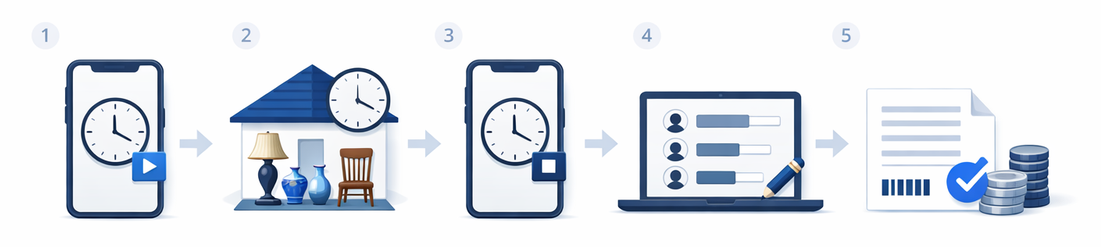
The sale tag is especially useful for companies running several properties or crews. It lets the owner filter labor by sale instead of separating mixed hours later.
Team clock records time. It does not schedule the crew, decide who should cover each role, or replace communication about arrival expectations.
The clearest crew instruction is short: clock in when you begin working, choose the correct sale when applicable, and clock out when your work ends. Repeat that instruction during onboarding and before the first job a new helper works.
How owners use Team Activity after the sale
Owners review crew activity on the web Team Activity page at /settings/team/activity. The page shows clock hours, items added, transactions, and labor cost.
Team Activity can be filtered by period and sale. This allows the owner to review one job without sorting through unrelated crew activity.
Use this review sequence after the sale:
- Filter Team Activity to the correct period and sale.
- Confirm that every expected crew member appears.
- Look for missing clock-out times or incomplete entries.
- Manually add or edit a time entry when a correction is needed.
- Set or verify each member’s hourly rate.
- Review the resulting labor cost.
- Keep the reviewed total with your payroll prep records.
Labor cost is calculated from hours multiplied by the team member’s hourly rate. For example, if a person worked eight hours at an hourly rate of $20, the labor cost shown for that work would be $160.
Set or edit the hourly rate on Team Activity. Review rates whenever pay arrangements change so that future labor cost calculations use the correct amount.
Items added and transactions provide added context about who participated in different parts of the sale. They should not be treated as a complete measure of effort, since door, floor, moving, and client support can be important without producing those records.
Owners need a dependable record of who worked, how long they worked, and what the labor cost.
Labor on the client packet
Internal helper pay and client-facing Labor fees serve different purposes.
Team Activity supports internal review. It shows estate sale crew hours and calculates labor cost from hours and hourly rates for payroll prep.
The client settlement supports a manual Labor fee or deduction line. The owner uses that line when the agreement says the family will pay for crew time, cleanout labor, or another applicable labor charge.
Hours do not automatically move from Team Activity into the client packet. The owner reviews the internal labor records, checks the client agreement, and manually adds the Labor line when it belongs on the settlement.
Use this process:
- Review the signed agreement for billable labor terms.
- Confirm the crew hours and internal labor cost in Team Activity.
- Determine the client-facing amount according to the agreement.
- Add the manual Labor line to the settlement.
- Check the description and amount before sending the packet.
Do not add a client Labor line merely because employees worked the sale. Many companies cover ordinary crew labor through their commission or another agreed pricing structure.
The Labor line is appropriate only when the family is responsible for that fee under the agreement. The estate sale settlement report guide explains how labor fits alongside cleanout, hauling, and similar deductions.
Permissions that support a multi-person crew
Team accounts and permissions support the clock, but they serve a different purpose. Permissions control what a person can access, while Team clock records when that person worked.
EstateSail team setup includes:
- Email invitations
- Roles and permissions
- Sale-specific access
- Limits on the hours and days a team member can get into your account
- Up to eight team members on the Pro plan
Give each worker the access needed for their responsibilities. A register helper may need different access from an owner or manager reviewing labor cost and client information.
Sale-specific access is useful when a company operates more than one crew. It can keep each person focused on the properties where they are assigned.
Access controls do not replace clocking in and out. A person can have access to a sale without actively working, and a permission window does not prove how many hours were worked.
For a multi-crew company, build the system in this order:
- Create an individual account for each worker.
- Assign the appropriate permissions.
- Limit sale access where needed.
- Require clock in and clock out.
- Review hours and labor cost in Team Activity.
- Add a settlement Labor line only when the client is being billed.
This creates clearer internal records while keeping client charges transparent.
Close-of-sale labor checklist
Time review should be part of the same closeout routine as registers, transactions, and client records. Add it to your estate sale day checklist so it does not depend on memory.
Use this checklist before treating the job as complete:
- Confirm that every crew member has clocked out
- Check that entries are associated with the correct sale
- Identify missing or incomplete time entries
- Add or edit entries when a correction is necessary
- Record notes for overtime when needed
- Verify each member’s hourly rate
- Review total hours and labor cost by sale
- Keep the reviewed hours in one place for payroll prep
- Check the client agreement for billable labor
- Add the manual Labor line only if the family is paying for crew
- Review the settlement amount before sending the client packet
Complete this review soon after the sale while the work is still easy to verify. If a time entry looks wrong, ask the crew member for clarification before payroll prep or settlement work is finalized.
Estate sale employee time tracking FAQ
What is estate sale employee time tracking?
Estate sale employee time tracking records who worked, when each person clocked in and out, and which sale received the labor. Owners use those hours with hourly rates to calculate labor cost and prepare helper pay. Client-facing Labor fees are handled separately.
Do I need a team clock if I run solo sales?
A solo operator may not need a team clock for helper pay, but recording work hours can still reveal the true labor required for each sale. That information can improve future estimates and show when a job needs additional help. A clock becomes more important as soon as employees or temporary helpers join the sale.
How do prep hours and sale-day hours differ?
Prep hours cover work such as inventory and pricing, room organization, and property preparation before the sale opens. Sale-day hours cover door, floor, register, and buyer support. Both are part of the sale’s labor cost, but separating them can help the owner understand where crew time was used.
Is Team Activity the same as payroll software?
No. Team Activity records clock hours, lets the owner set hourly rates, and calculates labor cost for payroll prep. The owner can filter the records by period and sale and correct time entries when needed. It does not replace the company’s broader payroll responsibilities.
How does labor appear on the client settlement?
Labor appears as a manual Labor fee or deduction line when the agreement requires the family to pay for crew time or related work. The owner adds that line after reviewing the agreement and the internal labor records. Team Activity hours do not automatically move into the client settlement.
Can I schedule shifts and open roles in EstateSail today?
No. EstateSail provides team accounts, permissions, access controls, Team clock, and Team Activity, but it does not currently provide staff scheduling or open-role tools.
Keep crew hours connected to the sale
A dependable labor process is simple: have everyone clock in and out, review the correct sale in Team Activity, verify hourly rates, and separate internal labor cost from any client-facing Labor fee. These habits create cleaner payroll prep, fewer missing hours, and a more accurate view of what each sale required.