
Help center · Check-in
How check-in works, start to finish
Set up your line, share it, run the door, and grow your buyer list. Watch the walkthrough, then use the steps below anytime you need them.
1. Open check-in on iPhone or the web
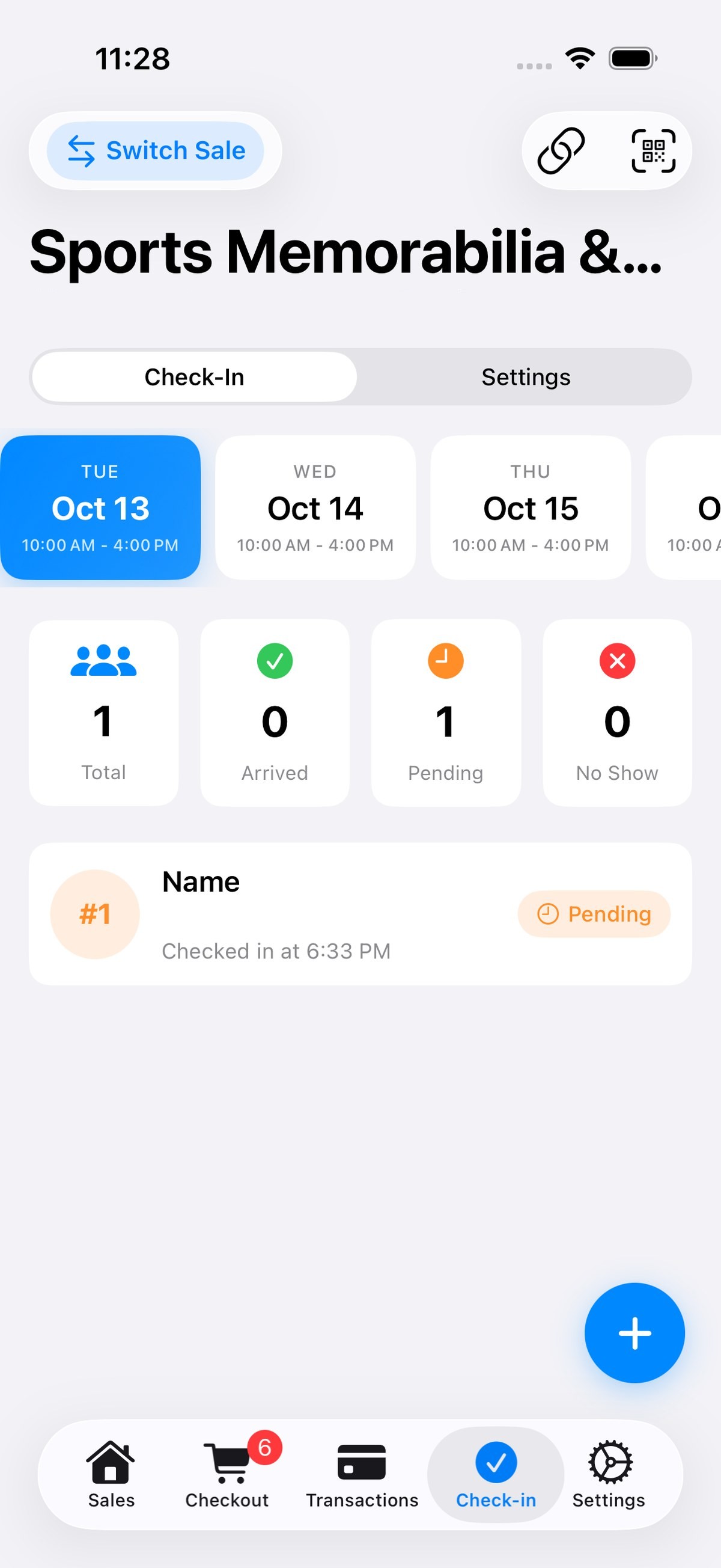
iPhone: tap the Check-in tab at the bottom of the app. Use Switch Sale to pick your sale. Only sales marked Current in Sales show here.
You'll see every sale day across the top and live counts for Total, Arrived, Pending and No Show. Two tabs sit under the sale name: Check-In (your line) and Settings.
Web: sign in at app.estatesail.us, open your sale and choose Check-In. Phone and computer stay in sync in real time, so the whole team sees the same line.
2. Share your check-in link and QR code
At the top right of the iPhone Check-in screen, tap the link button. It opens your sale's check-in QR code and link, with four options: Save QR Code to Photos, Print QR Label, Copy Link and Share Link. Text it, email it, post it in your listing, Facebook post and email blast, or print it. On the web app at app.estatesail.us, the Share Check-In panel has the public link with a copy button, plus the QR code to download or print.
3. The public check-in page
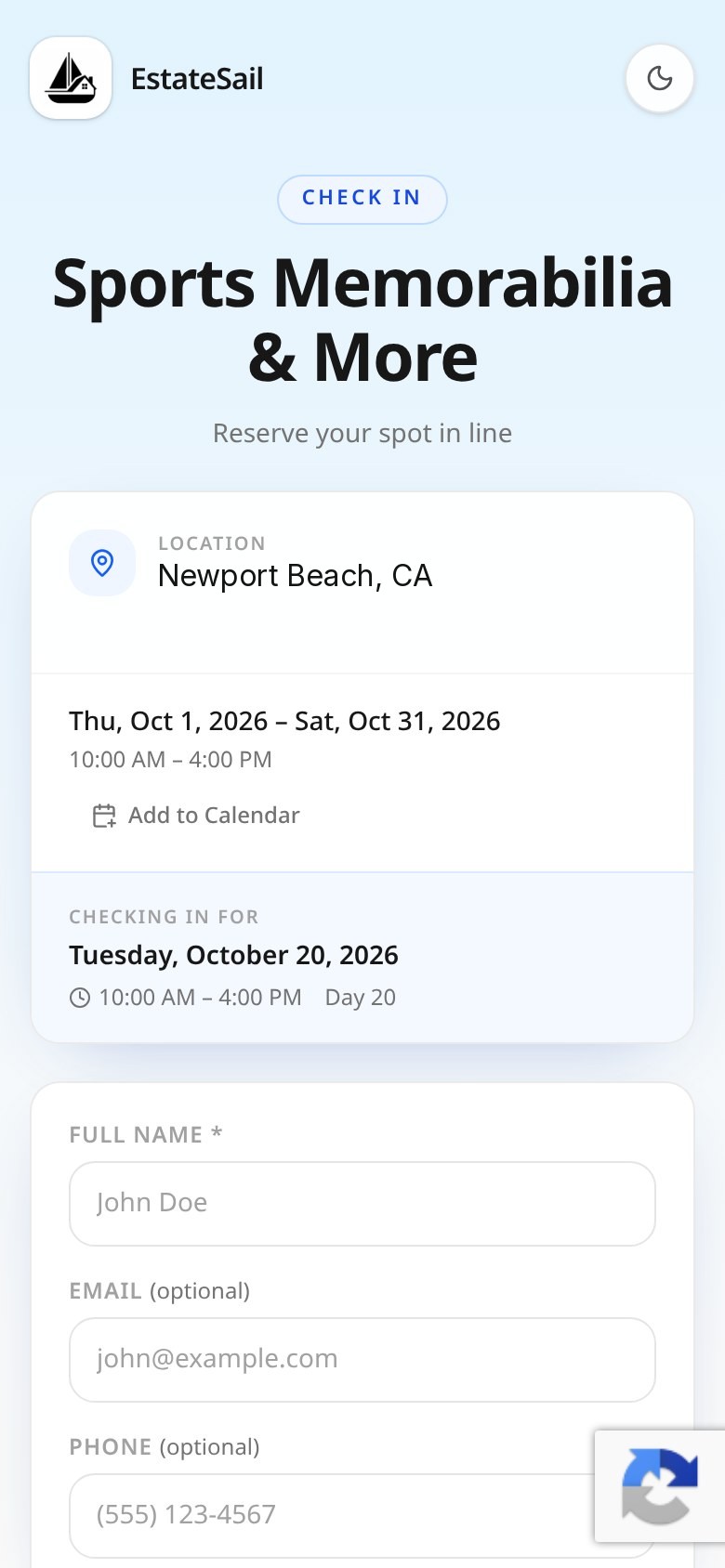
Your link opens a mobile-friendly page with your sale name, address (or "address revealed" if you hold it back), dates, Add to Calendar, and the day the shopper is checking in for.
Only Full Name is required. Email and phone are optional. Shoppers can choose a text confirmation and opt in to hear about future sales. Nobody has to download an app.
4. How shoppers check in by QR or link
- They scan your door poster or QR code, or tap your shared link.
- They enter their name (plus email or phone if they want a confirmation) and tap Check In Now.
- They get a queue number and their own QR code to save or screenshot.
- At the door, they show that QR code.
Numbers are first come, first served and start over at #1 each sale day. Check-ins made before the sale starts are saved as a pre-registration, which is how your early birds hold their spot without camping on the porch.
5. Appointment scheduling (time slots)
For timed entry, open the Settings tab and turn on Enable appointment scheduling. Then set:
- Slot length and a buffer between slots
- Max bookings per slot, so each slot can't overbook
- Blocked times for any slot you want closed
- Allow plus-one (party of 2)
- Customers can reschedule and a cancellation cutoff
- Appointment only per day. On those days shoppers must pick a time slot, and email and phone are required.
Shoppers get a "You're booked" confirmation with a link to manage, reschedule or cancel their appointment. You can move a booking to another slot, cancel it (they're notified), or add a walk-in straight into a slot.
6. Print the door poster
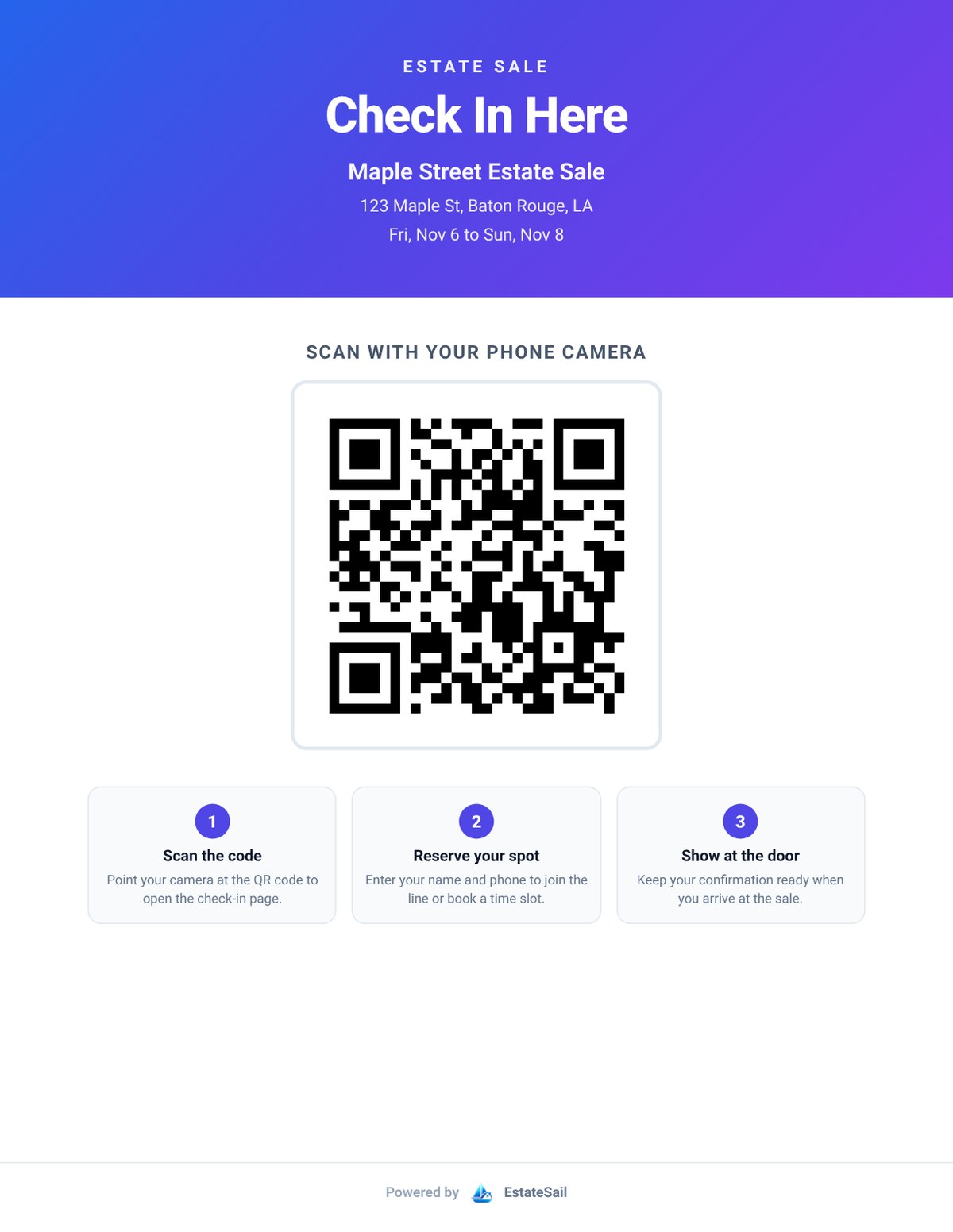
On the web app's Check-In page, tap Print in the Share Check-In panel. You get a letter-size (8.5 x 11) flyer that says Check In Here with your sale name, address, dates, a big QR code and three simple steps.
Tape one to the front door and one at the end of the driveway. Shoppers just point their phone camera at it.
7. Scan QR codes or check people in by hand
At open, tap the scan button at the top right of the Check-in screen, right next to the link button. The camera opens. Scan a shopper's QR code and they're marked Arrived.
The same camera screen shows an UP NEXT card with the next number in line and buttons to Mark as Arrived or Mark as No Show. So if someone's phone is dead, you check them in by hand without leaving the camera. If a number scans out of order, EstateSail warns you before letting them in, so nobody cuts the line.
8. Walk-ins and quick edits
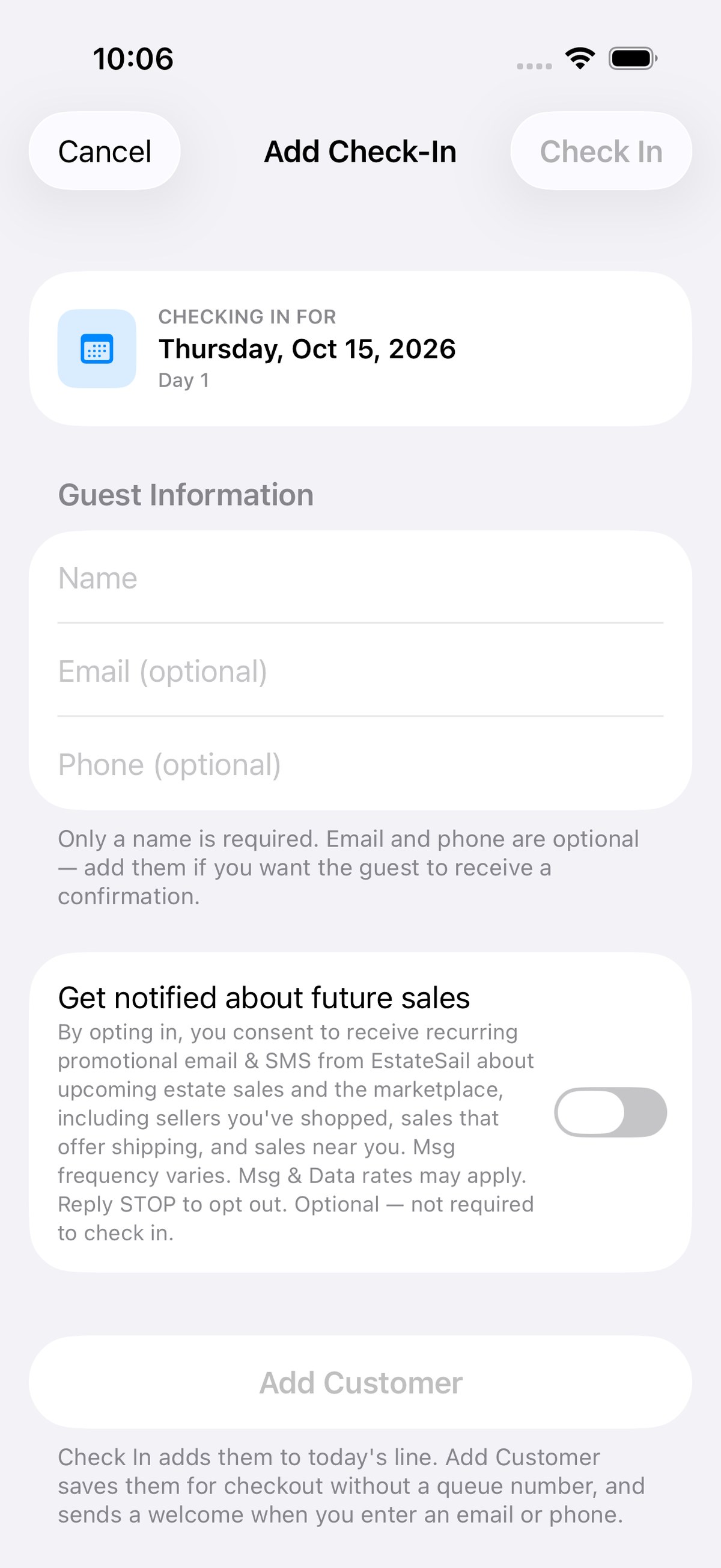
Tap the blue + to add a walk-in. Only a name is required. Check In adds them to today's line with the next number. Add Customer saves them for checkout without a queue number.
Tap anyone in the list to mark them arrived, mark a no-show, call them, or reset them to pending.
9. Notifications, address release and checkout
- Confirmations and reminders by email and text (texts only go to shoppers who consented).
- Note for customers (up to 200 characters) for parking, where to enter, or what to bring. It shows on confirmations, reminders and the check-in page.
- Withhold address until release time, then send it by email or text the morning of the sale.
- Push alerts on your iPhone for new bookings and upcoming slots. Each team member turns this on for their own device.
- Checkout link-up: on the receipt screen, search a shopper who checked in to tie the sale to their history.
10. Grow your buyer list
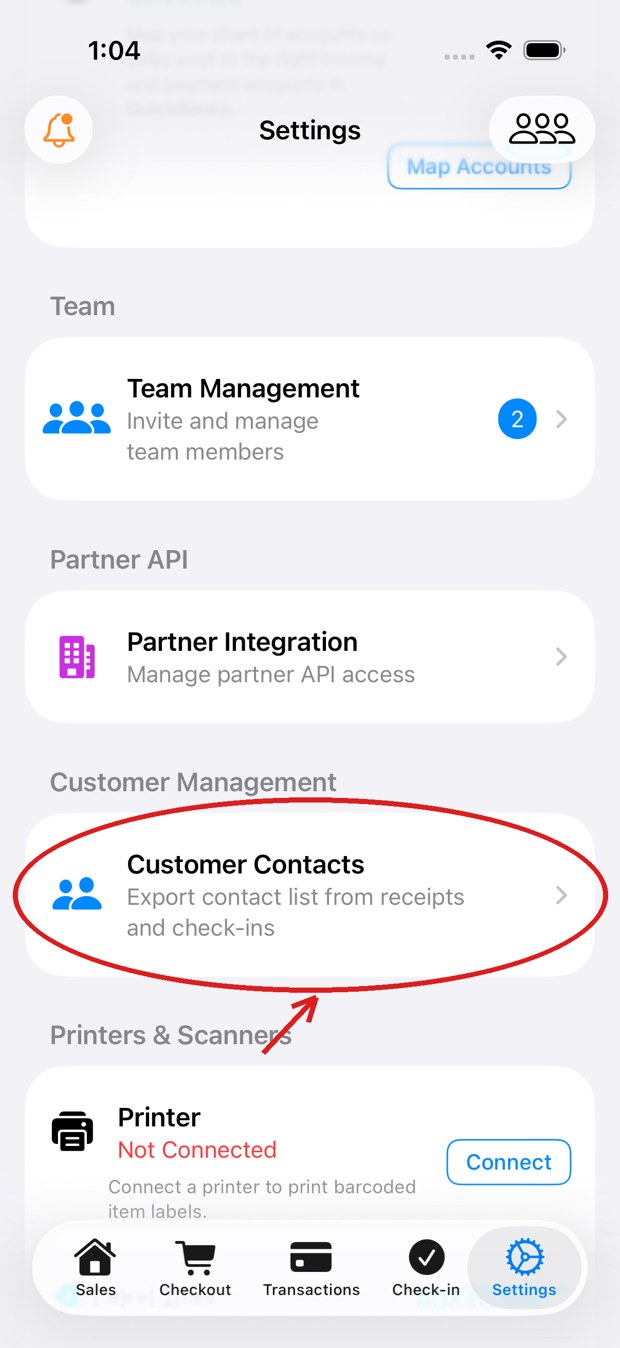
Every shopper who checks in with an email or phone is saved, and repeat visitors are matched across sales. In the app, go to Settings › Customer Contacts to export your contacts from receipts and check-ins as a spreadsheet for your mailing list.
Pro tips from the door
- Put your check-in link in every listing and social post the day you publish.
- Assign one person to the door with the scanner and a backup who knows the flow.
- Test one check-in on a crew phone the morning of the sale.
- Use appointment-only for the first hour of a busy sale, then open the line.
- Cap each slot to what the house can hold, especially in HOAs and gated neighborhoods.
- Mark no-shows so the next number moves up and the line stays honest.
Questions? We'll walk you through it.
Call or text us anytime at (318) 724-5877.
Call (318) 724-5877 Book a walkthrough