
New on the Web Dashboard: Import Customers, Add Customer, and a Check-In Countdown
These are live now on the EstateSail web dashboard at app.estatesail.us. Bring in the customer list you already have, save a shopper for checkout without putting them in line, open your public check-in link at the time you pick, and see a photo on every room. Thank you to the liquidators who asked for these.
Bring your customer list with you
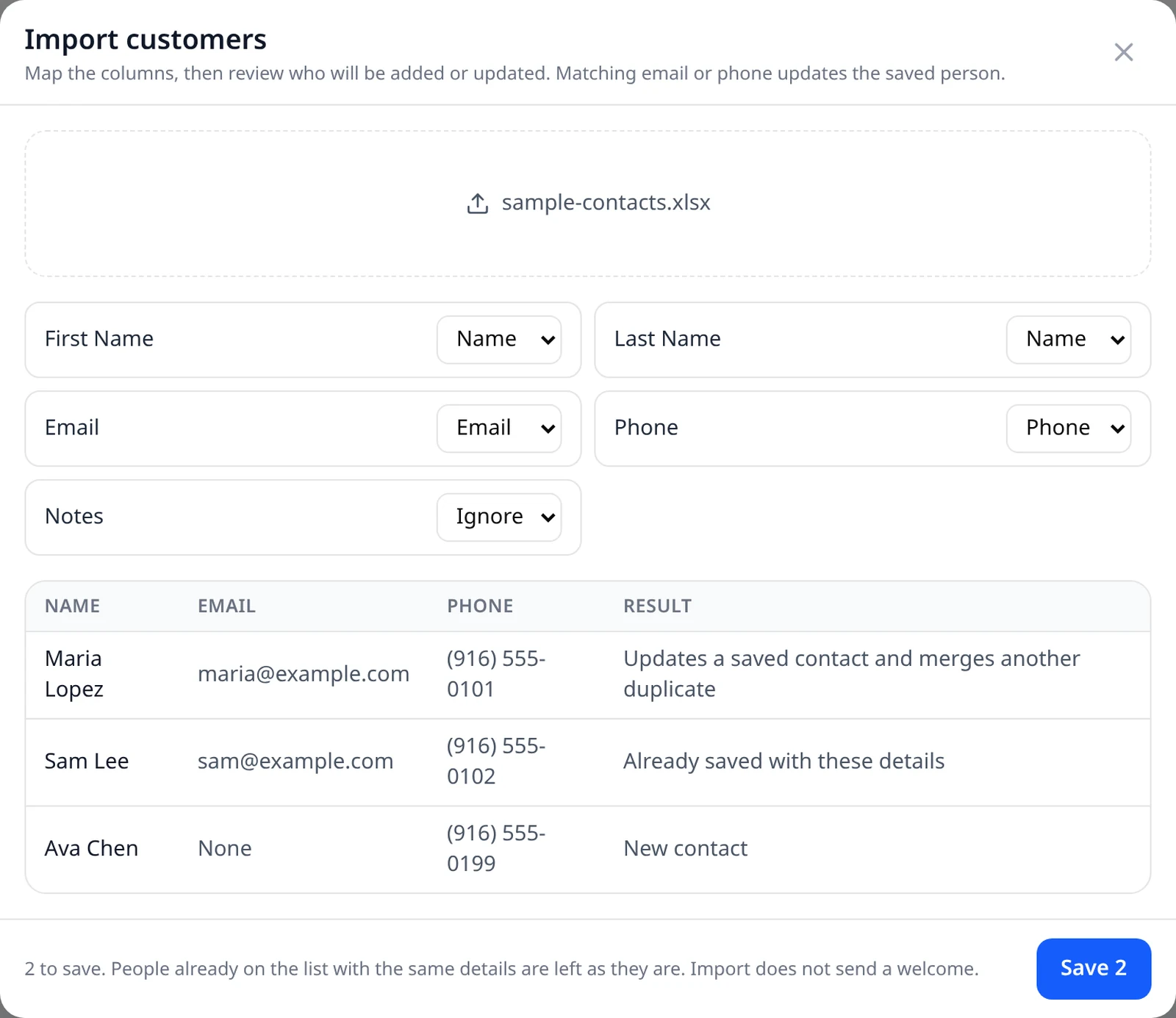
Go to Customers and choose Import. Pick a CSV or Excel file, match your columns to Name, Email, and Phone, and check the preview before anything saves. It shows who is new, who will be updated, and who is already saved.
- No duplicates. If an email or phone matches someone you already have, that person is updated instead of added twice.
- Nothing gets sent. Importing does not send a welcome email or text to anyone.
- Ready for your next sale. Imported customers show on your list right away. They are not counted as check-ins.
Add a customer without adding them to the line
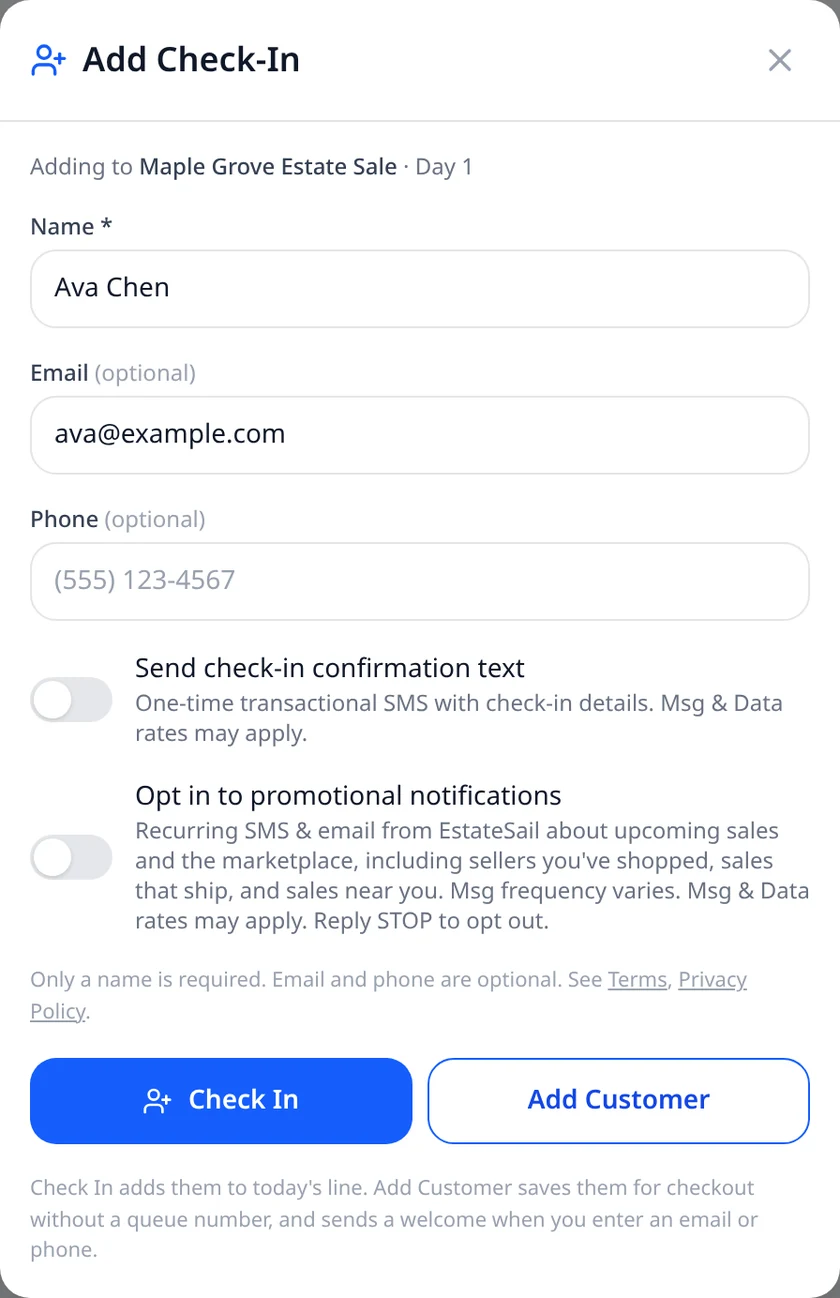
On a sale, open Check-In and choose Add Check-In. Check In works the same as always and gives the shopper a queue number. The new Add Customer button saves the person to your customer list for checkout, with no queue number.
- A welcome when you have their info. Enter an email or phone and they get a short welcome note. Name only? They are saved and nothing is sent.
- Easy to find at checkout. Look them up by name on a transaction and link the sale to them.
Open your check-in link when you are ready
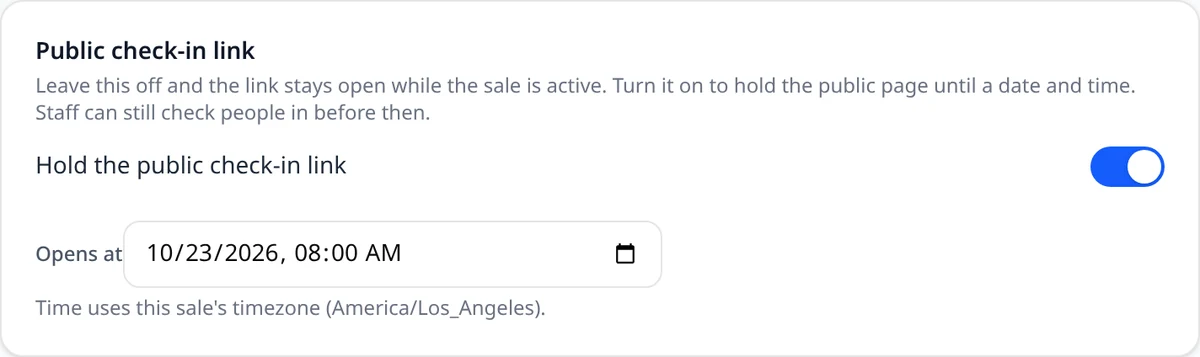
In Check-In Settings, turn on Hold the public check-in link and pick a date and time. Until then, your public check-in page shows a countdown instead of the form. Your staff can still check people in before then.
- Set in the sale's time zone. The time you pick follows the sale's own time zone.
- Off unless you turn it on. Leave it off and your link works the way it does today.
Shoppers see a live countdown
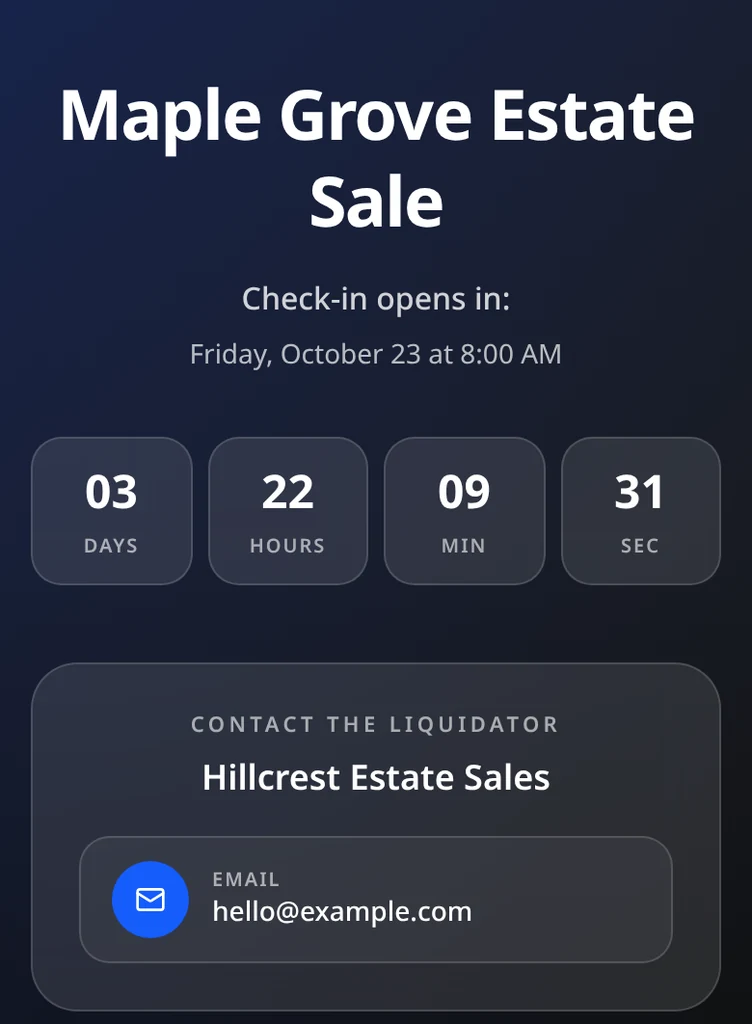
Anyone who opens your link early sees "Check-in opens in:" with a live countdown in days, hours, minutes, and seconds, along with your contact info. When the time comes, the check-in form opens on its own. No need to post a new link.
A photo on every room
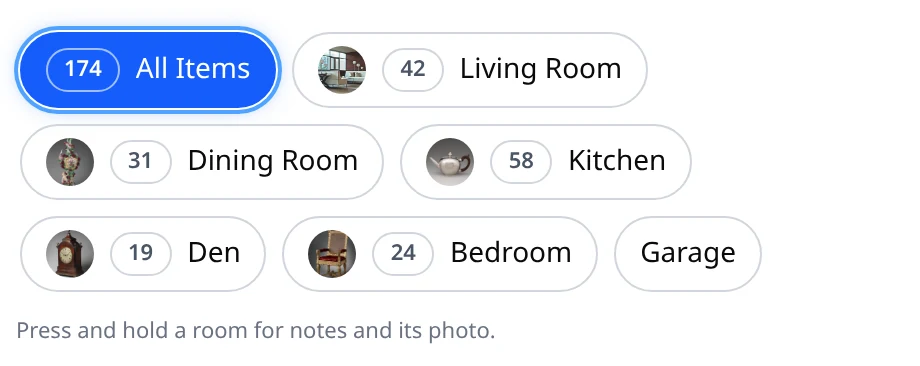
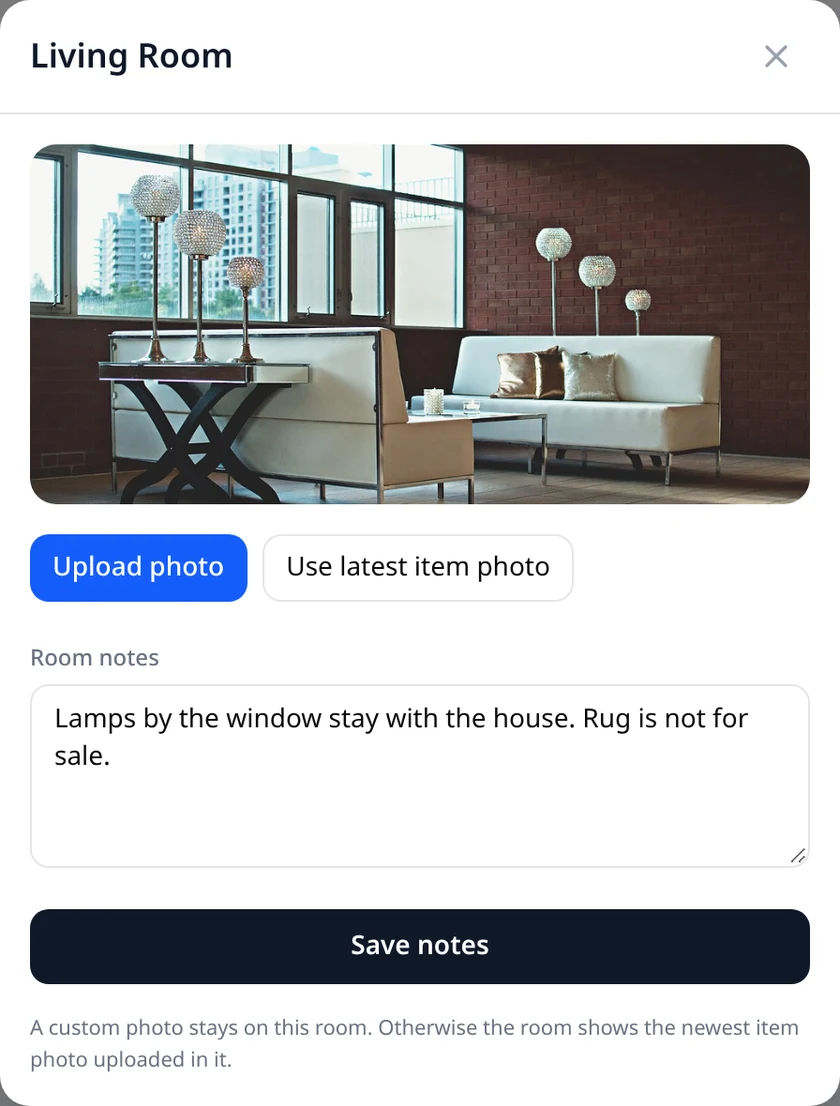
Room chips on the Items page now show the newest item photo from that room, so you can tell rooms apart at a glance. Press and hold a room, or right-click it on a computer, to add notes for your team and upload a room photo of your own.
- Your photo stays put. A photo you upload stays on that room. Choose Use latest item photo to go back.
- No photo yet? The room shows its name, same as before.
Smaller updates
- Buyers who only gave a phone number now show on the Customers tab, and a check-in and a purchase with the same number show as one person
- The seller Calendar shows the month, week, or day you are looking at, and its buttons fit better on a phone
Try it now
Everything above is live on the web dashboard. Sign in at app.estatesail.us from your computer or your phone's browser. The iPhone app picks up Add Customer, the check-in hold, and room photos in an upcoming update. New to EstateSail? Watch the walkthrough or download the app and run your first sale on us.