

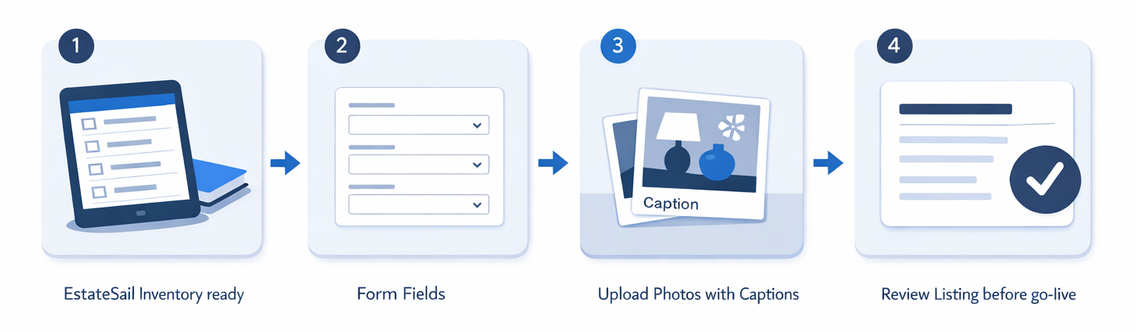
EstateSail can reuse the sale information and inventory you already prepared so you can create an EstateSales.net sale listing without typing the same fields and photo captions again. You auto-fill the Info, Details, and Dates sections from your EstateSail sale, then upload inventory photos with captions built from the item records.
In this guide, inventory sync means reusing that inventory already in EstateSail. It does not mean a live connection that keeps EstateSales.net Marketplace quantities, sold status, or per-item listings updated in both directions.

What this EstateSales.net workflow actually does
The EstateSail helper works with the traditional EstateSales.net sale wizard. It opens the wizard and helps with two jobs:
- Auto-fill the sale-level Info, Details, and Dates sections from your EstateSail sale.
- Upload photos from EstateSail inventory with captions based on each item record.
You still need an EstateSales.net seller account. You still review the listing before it goes live. The point is to avoid building inventory and pricing twice: once in EstateSail and again by hand inside EstateSales.net.
This is feature-descriptive support for listing on EstateSales.net. Do not treat it as a partnership seal or endorsement.
Finish inventory and pricing during pre-sale setup
Start with accurate information in EstateSail. Inventory and pricing usually happen during pre-sale setup, in the days before sale days open.
A useful room-by-room process is:
- Photograph the item.
- Add or review its title.
- Confirm the description and price.
- Assign the correct room.
- Save the item.
- Move to the next item or section.
Write descriptions a shopper might search for: maker, material, dimensions, style, subject, or model. Skip internal notes that will not help a buyer.
“Wood table” gives EstateSales.net almost nothing useful. “Broyhill walnut dining table with two leaves, 72 inches without leaves” gives search and shoppers something specific to match.
For broader context on software setup before listing day, see what is estate sale software and estate sale walkthrough tips.
Draft the sale-level description first
Before you open the EstateSales.net wizard, confirm that the EstateSail sale record has the correct dates, times, location information, and sale details.
EstateSail can generate a draft sale description from the sale. Use that draft as a starting point, then review it. Cover major categories, standout brands or higher-value items, access notes, payment or pickup policies, and anything else shoppers need before they arrive.
Keep the wording accurate. Do not advertise an item unless the crew has confirmed it will be available. EstateSales.net strips hyperlinks from some listing editors, so put essential information in the listing itself rather than relying on an outside link.
If you also list on estatesales.org in your market, treat that as a separate step. Some crews copy a reviewed sale description from the EstateSales.net workflow into an .org listing. Do not assume one push covers both sites.
Auto-fill the EstateSales.net sale fields
When the EstateSail sale record is ready, open the EstateSales.net helper and sign in to your seller account if needed.
- Open the correct sale in EstateSail.
- Open the EstateSales.net listing helper.
- Sign in to EstateSales.net.
- Start or open the sale wizard.
- Select Auto-Fill Sale.
- Allow EstateSail to fill the Info, Details, and Dates sections.
- Review every field before continuing.
Check dates and times closely. An incorrect opening time creates more problems than a blank field because shoppers plan around it.
Also review the sale title. EstateSales.net recommends titles that call out notable items, brands, categories, or the neighborhood. Auto-fill reduces repetitive entry. It does not replace a final check of address, dates, sale terms, description, and title.
Upload inventory photos with useful captions
Continue through the EstateSales.net wizard to the Pictures step. Choose the upload option on the site, then select the EstateSail inventory items whose photos you want to include.
EstateSail can prepare captions from the item record. Depending on the caption options you select, those captions can include the item title, item description, and price. You can also choose to upload only the first photo from each selected item when one image per item is enough for the public listing.
Review the photo selection before submitting. Lead with clear photos of the strongest reasons to attend, such as important furniture, collections, tools, jewelry, or artwork.
One experienced seller already listed regularly on EstateSales.net but had never added descriptions to listing photos. Seeing titles and descriptions prepared from existing inventory changed how that seller approached the Pictures step. The win was completing photo information without a separate caption-writing pass.
Large photo uploads can continue as a cloud job. After you submit, you can leave the page and receive an email when the upload completes. Return after that notice and verify the results before publishing.
Why EstateSales.net photo descriptions matter
Photo captions are not only for people scrolling the listing. EstateSales.net uses photo description text in site and app search, including its public Treasure Tracker feature.
Treasure Tracker watches Traditional and Marketplace sales for saved search terms and can email shoppers when a nearby sale matches. Photo descriptions are part of the text those searches can match. When a shopper searches for a term that appears in a photo description, EstateSales.net can surface the matching image instead of relying only on the listing’s feature photo.
Compare these captions:
- “Chair”
- “Pair of Baker Furniture upholstered armchairs”
- “Seth Thomas mantel clock with key”
- “Franciscan Desert Rose dinnerware set”
The more specific versions help both the shopper and the search system understand what is in the photograph. Use natural language with relevant brands, dimensions, materials, and item types. Do not invent click-rate claims. Specific, accurate descriptions are enough of a reason.
If you include price in the caption, confirm it in EstateSail before uploading. EstateSales.net allows photo edits until the sale ends, but later edits are not a substitute for publishing a complete listing early.
List early enough for the email window
EstateSales.net recommends listing a sale at least two calendar days before it starts so the sale can be included in user emails. Treat EstateSales.net work as part of pre-sale setup, not as last-minute catch-up on sale days.
Early in pre-sale setup: Create the EstateSail sale record. Confirm address, dates, hours, and sale details. Continue inventory and pricing by room. Review titles and descriptions for items most likely to appear in the public listing.
Two or more days before opening: Generate and review the sale description. Open the EstateSales.net wizard, auto-fill the sale fields, upload selected inventory photos, and check the captions. Publish at least two calendar days before the sale begins. Count back from your first open day so you still clear the two-calendar-day window.
The evening before and sale days: The evening before opening can cover late corrections or final review. Do not rely on that evening to create a listing that starts the next morning, because that misses the two-calendar-day email requirement. Sale days should focus on open operations, not bulk inventory entry or bulk labeling.
For opening and closing procedures, see estate sale day checklist.
Traditional sale listings and Marketplace sales are different
EstateSales.net has a separate Marketplace flow for online auctions and firm-price online sales. Marketplace items can have their own titles, descriptions, prices, categories, and fulfillment details.
The EstateSail process described here targets the traditional EstateSales.net sale wizard: Info, Details, Dates, and Pictures. Do not treat it as a live Marketplace item-management connection or a two-system inventory feed.
If you also want to sell from the same inventory online while running an in-person floor sale, pause online availability during floor hours so you do not double-sell an item. For that hybrid workflow, pause online inventory during floor hours and use pickup windows for leftovers. A dedicated hybrid estate sale guide is coming next in this series.
Final review before publishing
Before you publish, check the listing as a shopper would see it:
- Specific sale title
- Correct address, dates, and opening times
- Accurate sale description
- Strongest photos first, with matching captions
- No duplicate or unclear images
- Correct visible prices
- Complete terms and access instructions
- Live at least two calendar days before start when possible
Assign this review to one person so the listing does not fall between crew members.
FAQ
Does EstateSail publish the EstateSales.net listing automatically?
No. You sign in to your EstateSales.net seller account, use the helper to auto-fill sale fields and upload inventory photos, then review and complete the listing on EstateSales.net.
Do I have to upload every inventory photo?
No. You select the inventory items you want to include. You can also choose a first-photo-only option when one image per item is enough for the public listing.
What can EstateSail include in a photo caption?
Caption options can use the inventory item’s title, description, and price. Review those fields before upload because they may become shopper-facing text and can affect search and Treasure Tracker matches.
When should I publish the sale?
Publish during pre-sale setup and at least two calendar days before the sale starts if you want the listing to qualify for EstateSales.net user-email inclusion. Listing earlier also leaves time to correct dates, photos, or descriptions before doors open.
Does this replace writing photo descriptions?
No. The descriptions still need to be accurate in EstateSail. The helper reuses those fields so you do not retype them into EstateSales.net captions later.
A reliable EstateSales.net workflow starts with reviewed inventory and pricing in EstateSail. Auto-fill the sale fields, upload selected photos with specific captions, review the listing, and publish early enough for shopper discovery.
If you want help getting your first sale set up this way, your first sale is free.